

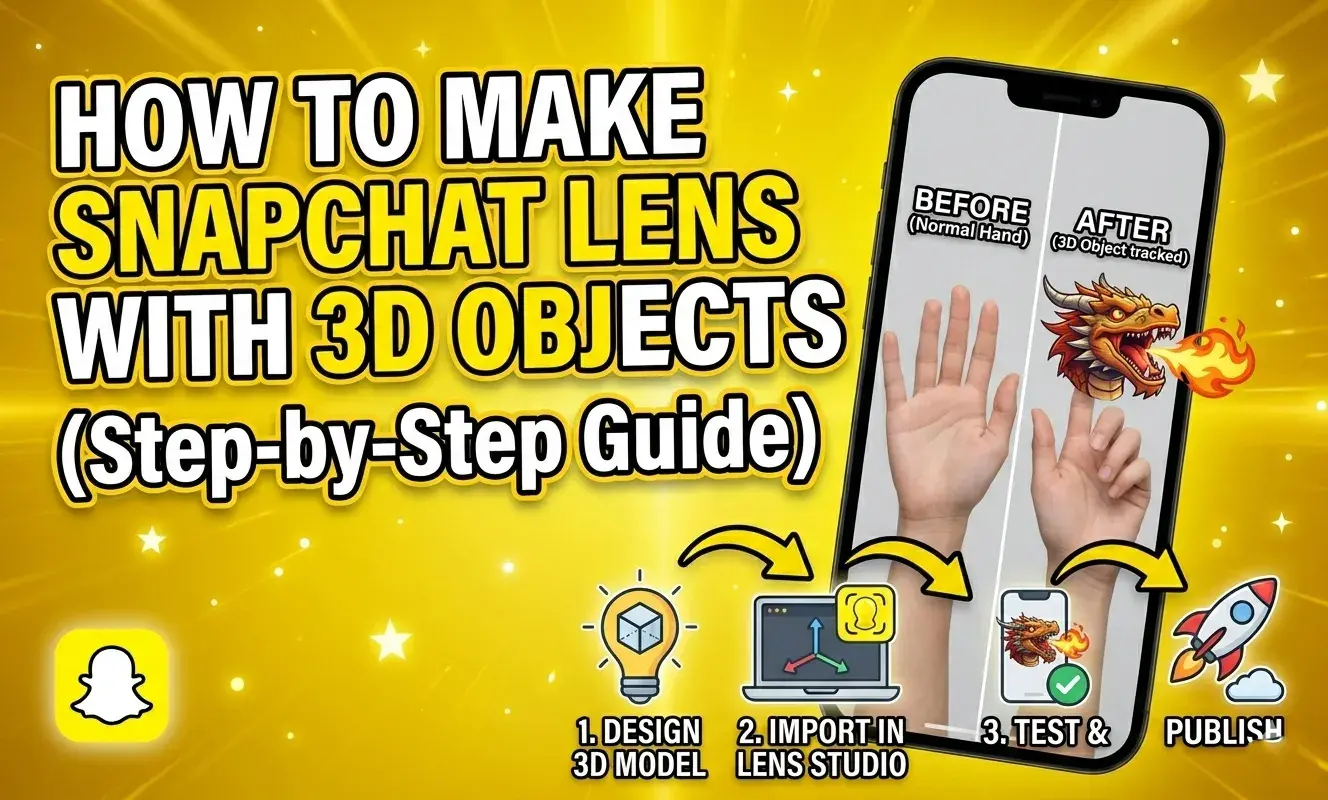
Snapchat has completely changed the way people interact with augmented reality (AR). One of the most exciting features is the ability to create 3D object lenses, where virtual objects appear in the real world through your camera.
From floating characters to virtual sunglasses and animated objects, 3D lenses are widely used for fun, creativity, and even business promotion.
In this complete beginner guide, you will learn how to create a Snapchat lens with 3D objects using Lens Studio step by step.
What is a 3D Object Lens?
A 3D object lens allows you to place a digital object into the camera view. The object behaves like it exists in the real world.
These objects can:
- Stay fixed on a surface
- Move with the camera
- Attach to a face or body
- Animate in real time
This creates a powerful AR experience for users.
Requirements Before You Start
Before creating your lens, make sure you have:
- A computer or laptop (Windows or Mac)
- Snapchat account
- Lens Studio installed
- A 3D model file (OBJ, FBX, or GLTF format)
👉 Tip: Beginners should use low-size models to avoid performance issues.
Step 1: Download and Open Lens Studio
First, install Lens Studio from Snapchat’s official website.
After installing:
- Open Lens Studio
- Log in using your Snapchat account
You will see the home screen with templates.
Step 2: Choose the Right Template
Lens Studio offers different templates for different types of lenses.
For 3D objects, you can choose:
1. World Object Template
- Best for placing objects in real space
- Example: chair, car, character
2. Face Effects Template
- Best for face-based objects
- Example: glasses, hats
👉 For beginners, start with World Object Template.
Step 3: Understand Lens Studio Interface
Before creating your lens, understand the main panels:
- Scene Panel: Shows all objects in your project
- Preview Panel: Displays your lens live
- Inspector Panel: Used for editing properties
- Resources Panel: Stores models, textures, and assets
Learning this layout will make your work easier.
Step 4: Import a 3D Model
Now add your 3D object.
- Go to Resources Panel
- Click Import
- Select your model file (OBJ/FBX/GLTF)
After importing:
- Drag the model into the Scene
You will see it appear in the preview.
Step 5: Place the 3D Object in Scene
Once added:
- Select your object in Scene panel
- Adjust its position
If you are using World Object:
- The object will appear on the ground
👉 You can tap on the screen later to place it anywhere.
Step 6: Adjust Position, Scale, and Rotation
Your object may not look perfect at first.
Fix it using:
- Position: Move object in space
- Scale: Resize object
- Rotation: Adjust angle
👉 Tip: Keep size realistic for better AR experience.
Step 7: Apply Materials and Textures
To make your object look good:
- Select your object
- Go to Inspector panel
- Add a Material
You can:
- Change color
- Add image textures
- Adjust shine and reflection
👉 Good textures make your lens look professional.
Step 8: Add Lighting
Lighting is very important in 3D design.
- Add Directional Light
- Adjust brightness and angle
You can also use:
- Ambient light for soft lighting
- Shadows for realism
👉 Proper lighting makes objects look real.
Step 9: Enable World Tracking
World tracking allows your object to stay in one place in the real world.
- Make sure World Tracking is enabled
- Use surface detection
Now:
- Tap on screen to place object
- It will stay fixed
This creates a real AR effect.
Step 10: Add Interaction
To make your lens more fun, add interaction.
You can:
- Tap to change object
- Tap to rotate
- Tap to animate
Use:
- Behavior Script
- Interaction helper
👉 Interactive lenses get more engagement.
Step 11: Add Animation (Optional)
Animations make your lens more attractive.
Examples:
- Spinning object
- Floating movement
- Bounce effect
Steps:
- Open Animation panel
- Add keyframes
- Create motion
Step 12: Test Your Lens
Testing is very important.
In Lens Studio:
- Use preview window
- Check object movement
On Your Phone:
- Click Preview on Device
- Scan Snapcode
Check:
- Object placement
- Smooth tracking
- Performance
Step 13: Optimize Your Lens
Before publishing:
- Reduce model size
- Compress textures
- Remove unnecessary objects
👉 Fast lenses perform better and load quickly.
Step 14: Publish Your Lens
Once your lens is ready:
- Click Publish Lens
- Enter details:
- Lens name
- Description
- Category
- Upload thumbnail
- Submit for review
Snapchat will review and approve your lens.
Step 15: Promote Your Lens
After approval:
- Share Snapcode
- Post on social media
- Add to your website
👉 Promotion helps your lens reach more people.
Tips to Create Viral 3D Lenses
1. Follow Trends
Create lenses based on trending ideas.
2. Keep It Simple
Don’t overload your design.
3. Make It Interactive
Add tap or motion features.
4. Use High-Quality Models
Better visuals = more shares.
5. Focus on Realism
Objects should look natural.
Common Mistakes to Avoid
- Heavy 3D models
- Poor lighting
- Wrong scaling
- No interaction
- Slow performance
Avoid these to improve your lens quality.
Advanced Ideas for 3D Object Lenses
Once you learn basics, try:
- AR games
- Virtual try-on filters
- Animated characters
- Product showcase lenses
These are useful for brands and business.
Benefits of Creating 3D Lenses
Creating 3D lenses can help you:
- Build your portfolio
- Grow your Snapchat presence
- Work with brands
- Earn money
Many businesses use AR lenses for marketing.
Final Thoughts
Creating a Snapchat lens with 3D objects in Lens Studio is an exciting way to explore augmented reality. Even beginners can create amazing lenses by following simple steps.
Start with basic models, practice regularly, and improve your skills. Over time, you can create professional and even viral lenses.