
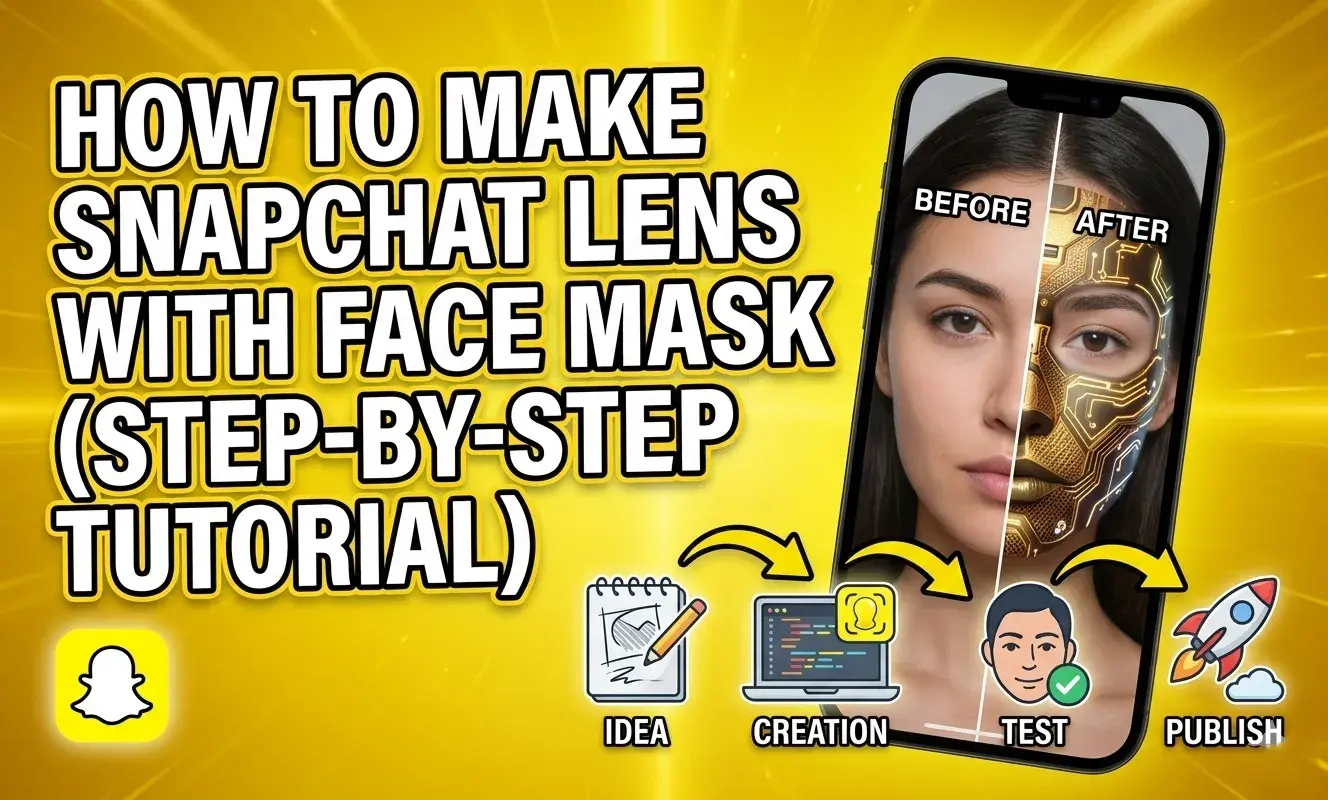
Snapchat lenses are one of the most creative ways to express yourself online. Among all types of lenses, Face Mask lenses are extremely popular. You have probably seen filters that add funny masks, animal faces, makeup styles, or even full-face transformations. These are created using Snapchat’s powerful tool called Lens Studio.
In this complete step-by-step tutorial, you will learn how to make a Snapchat lens with a face mask. This guide is beginner-friendly and easy to follow, even if you are new to Lens Studio.
What is a Face Mask Lens?
A Face Mask lens is a type of Snapchat filter that overlays graphics or textures directly onto a user’s face. It tracks facial movements and fits perfectly in real time.
With a face mask lens, you can:
- Add funny or cute masks
- Apply makeup filters
- Create character faces
- Design artistic or stylish overlays
These lenses are widely used in entertainment, branding, and social media marketing.
What You Need Before You Start
Before creating your lens, make sure you have:
- A computer or laptop (Windows or Mac)
- Snapchat account
- Lens Studio installed
- Basic understanding of images (PNG, JPG)
👉 Tip: Use PNG images with transparent background for best results.
Step 1: Download and Open Lens Studio
First, download Lens Studio from Snapchat’s official website and install it.
After installation:
- Open Lens Studio
- Log in with your Snapchat account
You will see the main dashboard with multiple templates.
Step 2: Choose Face Mask Template
Lens Studio makes things easier with ready-made templates.
- Click on Templates
- Select Face Effects
- Choose Face Mask
This template already includes face tracking and mask setup.
Step 3: Understand the Workspace
Before editing, understand the main sections:
- Scene Panel: Shows all objects (face mesh, camera, etc.)
- Preview Screen: Shows your lens in action
- Inspector Panel: Settings and customization
- Resources Panel: Your images and files
This will help you work faster.
Step 4: Add Your Face Mask Design
Now it’s time to add your custom mask.
Option 1: Use a Ready Image
- Import your PNG file
- Drag it into the Resources panel
Option 2: Create Your Own Design
- Use tools like Photoshop or Canva
- Design a mask that fits a face shape
- Export as PNG (transparent background)
👉 Example ideas:
- Joker face
- Animal mask
- Festival makeup
- Cartoon style
Step 5: Apply Mask to Face Mesh
This is the most important step.
- In the Scene panel, select Face Mesh
- In the Inspector panel, find Material
- Click on it and create a new material
Now:
- Assign your image texture to the material
- The mask will appear on the face
Step 6: Adjust the Mask Position
Sometimes the mask may not align perfectly.
To fix it:
- Adjust scale, position, and rotation
- Use the preview window to check alignment
👉 Tip: Keep testing with different face angles.
Step 7: Enable Face Tracking
Face tracking is what makes the mask move with the face.
Good news:
- Face Mask template already includes it
But you can enhance it:
- Add Face Landmarks
- Improve accuracy for eyes, nose, and mouth
This ensures your mask fits naturally.
Step 8: Customize Your Lens
Now make your lens more attractive.
Add Colors
- Adjust brightness and contrast
- Use color correction
Add Effects
- Glow effect
- Blur effect
- Shadow for depth
Add Extra Elements
- Stickers
- Text
- Animation
👉 Keep design clean and attractive.
Step 9: Add Animation (Optional)
Want to make your mask more engaging?
You can:
- Animate eyes blinking
- Add moving elements
- Create glowing effects
To do this:
- Use Animation panel
- Add keyframes
This step is optional but powerful.
Step 10: Test Your Lens
Testing is very important.
Inside Lens Studio
- Use preview models
- Try different face expressions
On Your Phone
- Click Preview on Device
- Scan Snapcode
Check:
- Alignment
- Smooth tracking
- Overall look
Step 11: Optimize Your Lens
Before publishing:
- Keep file size small
- Avoid heavy graphics
- Ensure smooth performance
Fast lenses perform better and get more engagement.
Step 12: Publish Your Lens
Once everything is ready:
- Click Publish Lens
- Fill details:
- Lens Name
- Description
- Category
- Upload thumbnail
- Submit for review
Snapchat will review and approve your lens.
Step 13: Promote Your Lens
After approval, your lens is live.
You can promote it by:
- Sharing Snapcode
- Posting on Instagram & Facebook
- Adding it to your website
👉 More promotion = more users = more chances to go viral
Tips to Make Your Face Mask Lens Popular
Here are some expert tips:
1. Follow Trends
Check trending Snapchat filters and create similar ones.
2. Keep It Unique
Add your own creative twist.
3. Focus on Quality
Good design = more shares.
4. Use Simple Design
Clean masks perform better than complex ones.
5. Target Audience
Make filters for:
- Girls (beauty masks)
- Gamers (character masks)
- Festivals (Diwali, Holi themes)
Common Mistakes to Avoid
Avoid these mistakes:
- Poor alignment
- Low-quality images
- Overloaded effects
- Slow performance
👉 Always test before publishing.
Advanced Ideas for Face Mask Lenses
Once you learn basics, try advanced ideas:
- 3D masks
- Realistic makeup filters
- AR character transformation
- Interactive masks (tap to change)
These can help your lens stand out.
Benefits of Creating Snapchat Face Mask Lenses
Creating lenses can help you:
- Build your brand
- Grow followers
- Promote your services
- Earn money through ads
Many creators use lenses for marketing and business.
Final Thoughts
Creating a Snapchat Face Mask lens is fun, creative, and rewarding. With Lens Studio, you don’t need advanced skills to get started. Just follow the steps, keep your design simple, and test your lens properly.
Start with basic masks, then slowly move to advanced designs. With practice, you can create viral filters that reach thousands of users.