

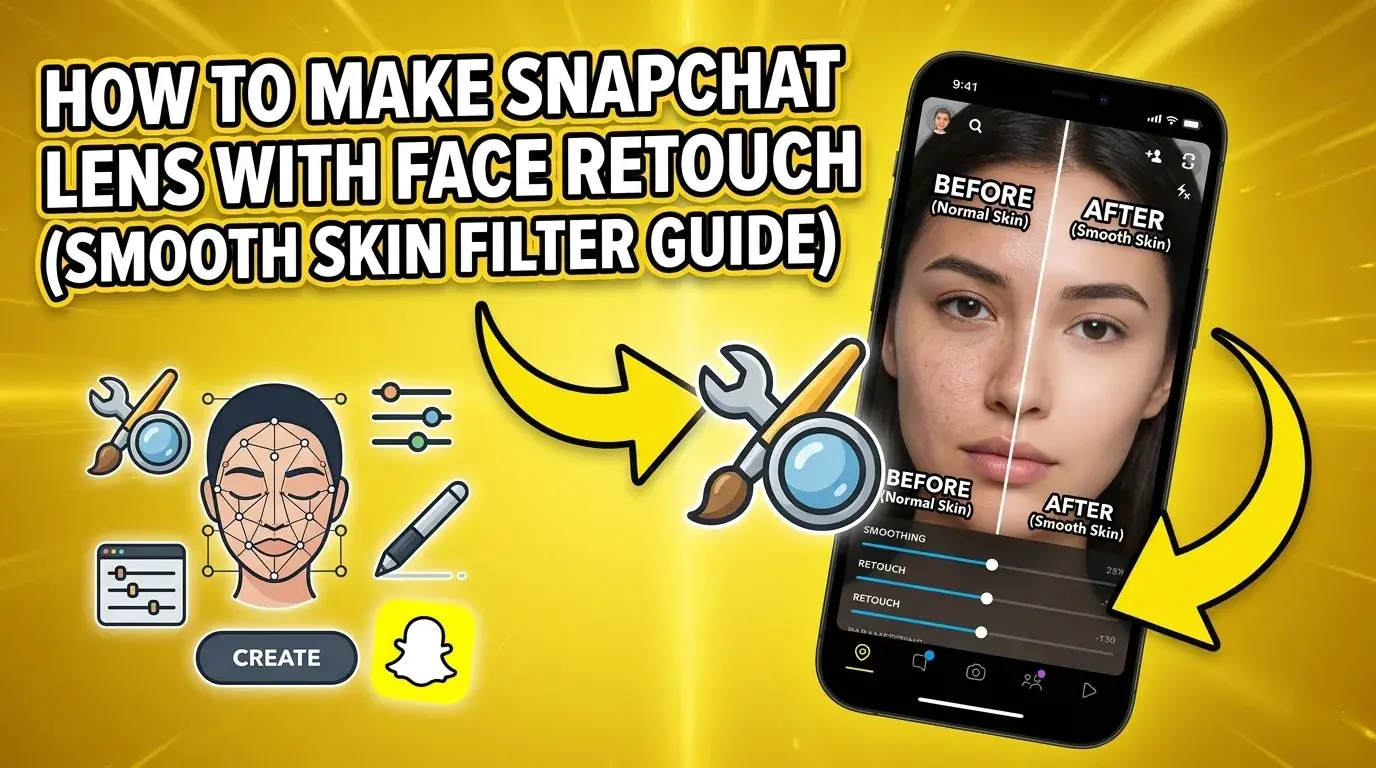
Snapchat lenses are one of the most popular ways to create fun, engaging, and viral content. If you use Snapchat regularly, you have probably seen smooth skin filters that make faces look clear, glowing, and attractive. These filters are created using Snapchat’s official tool called Lens Studio.
In this complete guide, you will learn how to make a Snapchat lens with a face retouch effect (smooth skin filter) step by step. This guide is beginner-friendly, so even if you have never used Lens Studio before, you can still follow along easily.
What is a Face Retouch Lens?
A face retouch lens is a type of Snapchat filter that improves facial appearance. It can:
- Smooth skin
- Remove blemishes
- Brighten face
- Enhance eyes
- Adjust facial features slightly
This type of lens is very popular among users because it makes selfies look more polished and attractive without heavy editing.
What You Need Before Starting
Before creating your lens, make sure you have the following:
- A computer or laptop (Windows or Mac)
- Internet connection
- Snapchat account
- Lens Studio installed
Lens Studio is free to use and available on Snapchat’s official website.
Step 1: Download and Install Lens Studio
Go to the official Snapchat Lens Studio website and download the software. Install it on your computer.
After installation:
- Open Lens Studio
- Log in using your Snapchat account
Once you log in, you will see the main dashboard.
Step 2: Choose a Template
Lens Studio provides ready-made templates for beginners.
To create a smooth skin filter:
- Click on Templates
- Select Face Effects
- Choose Face Retouch template
This template already includes basic skin smoothing features, so you don’t have to build everything from scratch.
Step 3: Understand the Interface
Before editing, take a quick look at the interface:
- Scene Panel (Left side): Shows objects used in your lens
- Preview Screen (Center): Shows how your lens looks
- Inspector Panel (Right side): Used to adjust settings
- Resources Panel (Bottom): Contains assets like textures and materials
Don’t worry if it feels confusing at first. You will get used to it quickly.
Step 4: Add Face Retouch Effect
If you selected the Face Retouch template, it is already added. If not:
- Click on Add New Object
- Select Face Effects
- Choose Face Retouch
Now the retouch effect is applied to the face.
Step 5: Adjust Smooth Skin Settings
This is the most important step.
Select the Face Retouch object in the Scene panel. Then go to the Inspector panel.
You will see multiple options like:
1. Smoothness
- Controls how smooth the skin looks
- Increase slightly (do not overdo it)
- Recommended: 20–40%
2. Detail
- Keeps skin texture natural
- Balance is important
- Too low = plastic look
3. Brightness
- Adds glow to the face
- Keep it subtle
4. Eye Sharpening
- Makes eyes look clearer
- Use lightly for natural effect
5. Teeth Whitening
- Brightens teeth
- Optional but useful
👉 Tip: Always aim for a natural look. Over-editing can make the filter look fake.
Step 6: Test Your Lens
Lens Studio provides a preview feature.
- Use the built-in face preview
- Try different face angles
- Check lighting conditions
You can also test it on your phone:
- Click Preview on Device
- Scan the Snapcode with your Snapchat app
This helps you see real results.
Step 7: Customize Your Filter
To make your lens unique, you can add extra elements:
Add Color Effects
- Use color correction to enhance tone
- Slight warm tone works well for beauty filters
Add Light Effects
- Soft glow or vignette can improve visuals
Add Makeup Elements
- Light blush
- Lip tint
- Subtle highlights
👉 Keep it simple. Clean filters perform better than overloaded ones.
Step 8: Optimize Performance
Before publishing, make sure your lens runs smoothly.
- Avoid heavy 3D objects
- Keep file size low
- Test performance on mobile
Snapchat has performance guidelines, so follow them.
Step 9: Publish Your Lens
Once your lens is ready:
- Click Publish Lens
- Enter lens details:
- Name
- Description
- Category (Beauty, Face, etc.)
- Upload a thumbnail
- Submit for review
Snapchat usually reviews lenses within a few hours to a couple of days.
Step 10: Share Your Lens
After approval, your lens will be live.
You can:
- Share Snapcode
- Promote on social media
- Add it to your website
More promotion = more users = higher chances of going viral.
Tips to Make Your Lens Go Viral
Here are some proven tips:
1. Keep It Natural
Users prefer realistic beauty filters.
2. Follow Trends
Check trending filters and create similar styles.
3. Use Catchy Names
Example:
- “Glow Skin Filter”
- “Natural Beauty Lens”
4. Promote on Social Media
Share on:
- Snapchat stories
- Instagram reels
5. Collaborate with Influencers
Give your lens to creators for more reach.
Common Mistakes to Avoid
Avoid these mistakes:
- Over-smoothing skin
- Too much brightness
- Unrealistic face changes
- Heavy effects that slow performance
Simple and clean always wins.
Benefits of Creating Snapchat Lenses
Creating lenses is not just fun. It can also help you:
- Build a personal brand
- Grow followers
- Promote your business
- Earn money through marketing
If your lens becomes popular, it can reach thousands or even millions of users.
Advanced Ideas for Face Retouch Lens
Once you learn basics, try these ideas:
- Glow + sparkle effect
- Skin tone adjustment filter
- Festival or seasonal beauty lens
- AI-based beauty enhancements
Experimenting helps you create unique content.
Final Thoughts
Creating a Snapchat lens with a face retouch smooth skin filter is easier than you might think. With Lens Studio, even beginners can build professional-looking filters in a short time.
Start with basic settings, keep your design natural, and test your lens properly before publishing. Over time, you will improve your skills and create even better lenses.
If you stay consistent and follow trends, your lenses can gain popularity and help you grow your online presence.